

SE Extension Cleaner — User Guide

Version 2.1.0 | SE Extensions Compatibility: Joomla 5.x / 6.x | PHP 8.1+

Table of Contents

  1. Introduction
  2. Installation & Licensing
  3. Dashboard Overview
  4. Running a Scan
  5. Components
  6. Modules
  7. Plugins
  8. Orphaned Tables
  9. Broken Files
  10. AI Analysis (New in v2.1.0)
  11. Safe Mode & Backups
  12. Safelist
  13. Action Log
  14. Reports & Exports
  15. Configuration Reference
  16. Recommended Workflow
  17. FAQ & Troubleshooting

1. Introduction

SE Extension Cleaner scans your Joomla site for unused components, modules, plugins, orphaned database tables, and broken extension files. It helps you clean up your site before a major version upgrade or simply to reduce clutter and improve performance.

The extension analyses your site using a scoring system that checks menu items, database content, template positions, publish states, file integrity, and extension relationships. Each item is assigned a status from "Unused" to "In Use" so you can make informed decisions about what to keep and what to remove.

What this extension does not do: SE Extension Cleaner never deletes or disables anything automatically. Every action requires your explicit confirmation. It is an analysis and cleanup tool, not an autopilot.

2. Installation & Licensing

Installing

  1. Download the com_seextensioncleaner_v2_1_0.zip package.
  2. In your Joomla administrator, go to System → Install → Extensions.
  3. Upload and install the zip file.
  4. The component will appear under Components → SE Ext Cleaner in the admin menu.

If you are upgrading from a previous version (2.0.x), install the new package over the top — it is a safe upgrade. Your existing scan cache, action log, safelist, and backups are preserved. A new database table for AI analysis caching is created automatically.

Activating Your License

  1. Go to Components → SE Ext Cleaner → Dashboard.
  2. If the license bar shows "License Not Activated", click Open Options.
  3. Under the License tab, enter your License Server URL and License Key (both are in your purchase confirmation email).
  4. Save and close, then click Activate License on the dashboard.
  5. The status bar will turn green and show "License Active" with your plan name and expiry date.

You can click Check License at any time to re-verify your license status with the server. The extension continues to work with an expired license, but updates require an active license.

3. Dashboard Overview

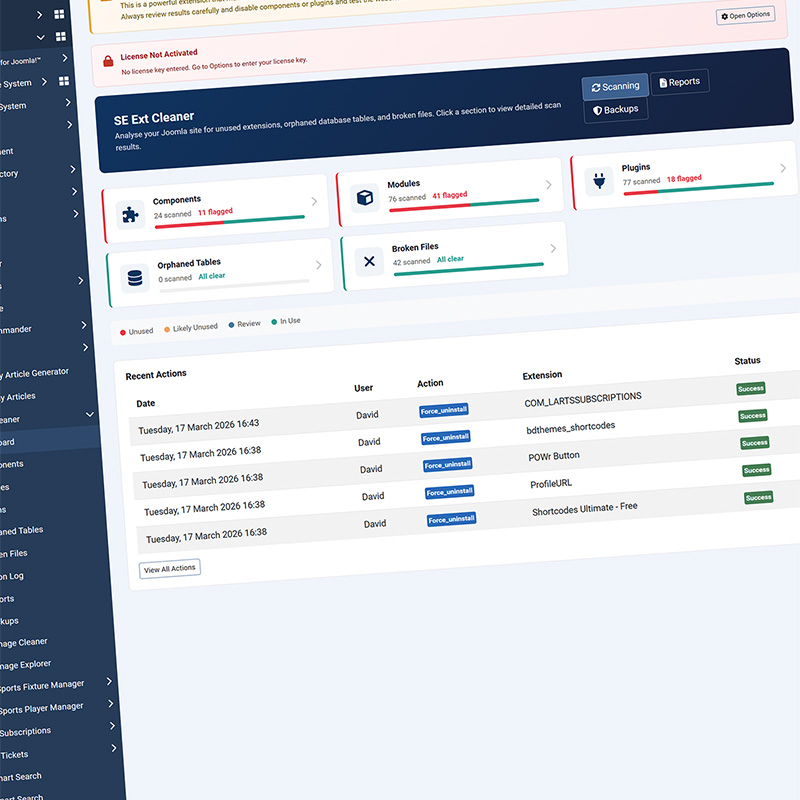
The dashboard is your starting point. It shows five summary cards, one for each scan type:

Card

What it scans

Components

Third-party components (Joomla core components are excluded)

Modules

Site (frontend) modules — optionally admin modules too

Plugins

Third-party plugins (core Joomla plugins are excluded)

Orphaned Tables

Database tables that don't belong to any installed extension

Broken Files

Extensions registered in the database but with missing or incomplete files

Each card shows how many items were scanned and how many were flagged. A colour-coded bar gives you a visual breakdown. Click any card to view the detailed scan results.

Below the cards, a legend explains the four status colours used throughout the extension. The dashboard also shows your most Recent Actions — the last few disables, enables, and table drops performed through this tool.

Dashboard Buttons

The top of the dashboard has three action buttons:

  • Run Scan — runs all five scan types in sequence via AJAX with a progress bar.
  • Reports — takes you to the reports page for PDF and CSV exports.
  • Backups — takes you to the backup management page.

4. Running a Scan

When you first open the dashboard (or when your scan cache has expired), a full scan runs automatically. You can also click Run Scan at any time to force a fresh scan.

The scan runs in five sequential AJAX steps — one per scan type — with a progress bar. Each step updates its corresponding dashboard card in real time. A typical scan takes a few seconds on most sites.

Scan Cache

Scan results are cached so the dashboard loads instantly on subsequent visits. The default cache lifetime is 30 minutes. You can change this in Options → SE Extension Cleaner Settings → Scan Cache Lifetime to 10 minutes, 1 hour, 2 hours, or 24 hours.

5. Components

The Components view lists all third-party components installed on your site. Joomla core components (com_content, com_users, com_menus, etc.) and SE Extension Cleaner itself are always excluded.

How Components Are Scored

Each component is scored out of 100 based on four checks:

Check

Points

What it means

Menu items

+40

Does this component have any frontend menu items?

Database rows

+30

Does it have tables with data in them?

Module references

+15

Are any modules related to this component?

Enabled state

+15

Is the component currently enabled?

The total score determines the status:

Score

Status

0–10

Unused — safe to consider removing

11–30

Likely Unused — very few signs of use

31–55

Review — some indicators, check manually

56+

In Use — actively used

Actions Available

  • Disable / Enable — toggles the component's enabled state. Disabling is a safe first step before uninstalling — it lets you test the site with the component off.
  • Mark as Safe — excludes the component from future scans (see Safelist).
  • Analyse — sends the component's data to your configured AI provider for a plain-English explanation (see AI Analysis).

Filter Bar

Use the filter buttons at the top to show only items with a specific status (Unused, Likely Unused, Review, or In Use).

6. Modules

The Modules view lists site (frontend) module instances. Core essential modules (mod_menu, mod_login, mod_breadcrumbs) are excluded. If you enable "Scan Admin Modules" in Options, administrator modules are included too.

How Modules Are Scored

Check

Points

What it means

Published state

+30

Is the module published? (Unpublished or trashed = 0)

Page assignments

+20–25

Is it assigned to pages? (All pages = 25, specific pages = 20, none = 0)

Template position

+25

Does the assigned position exist in the active template?

Extension installed

+10

Is the parent module extension still installed? (If not, score is forced to 0)

Actions Available

  • Edit — opens the module in Joomla's module editor (new tab).
  • Mark as Safe — excludes from future scans.
  • Analyse — AI analysis of the module.

A module whose parent extension is uninstalled (e.g., you removed com_acymailing but the mod_acymailing instance remains) is flagged as "orphaned" and scored at 0.

7. Plugins

The Plugins view lists all third-party plugins. Core Joomla plugins (identified by "Joomla! Project" in the author field) are excluded.

How Plugins Are Scored

Check

Points

What it means

Enabled state

+40 (x2 checks)

Is the plugin enabled? (Two scoring passes, effectively +50 total)

Related component

+20

Is there an installed component that matches this plugin's name?

Files exist

+10

Are the plugin's files present on disk? (If not, score is forced to 0)

Actions Available

  • Disable / Enable — toggles the plugin's enabled state.
  • Mark as Safe — excludes from future scans.
  • Analyse — AI analysis.

The scanner also identifies plugin-to-component relationships. For example, if you have a plg_content_hikashop plugin but com_hikashop is not installed, the scanner will note this.

8. Orphaned Tables

Orphaned tables are database tables that don't match any currently installed extension. They are typically left behind when extensions are uninstalled improperly (e.g., by deleting files via FTP instead of using Joomla's uninstaller).

How Ownership Is Identified

The scanner uses three strategies to identify who created an orphaned table:

  1. Known prefix map — a curated list of 100+ popular Joomla extensions and their table prefixes (e.g., hikashop_ → HikaShop, acym_ → AcyMailing, kunena_ → Kunena Forum).
  2. Action log — checks if SE Extension Cleaner previously disabled or uninstalled an extension that matches the table prefix.
  3. Orphaned schema entries — checks for #__schemas rows where the extension_id no longer exists in #__extensions.

When AI analysis is enabled, the scanner can also send the table's column structure to the AI for deeper identification.

Information Shown

Each table shows its full name, row count, size in KB, the probable owner (if identified), and how the owner was identified (known prefix, action log, or prefix match).

Actions Available

  • Drop Table — permanently deletes the table from your database. You will be asked to confirm, and the confirmation shows the table name and row count. If Safe Mode is on, a backup is created first.
  • Mark as Safe — excludes the table from future scans.
  • Analyse — AI analysis with column structure inspection.

Warning: Dropping tables is permanent. Always have a backup. Some tables may be used by extensions in ways that the scanner cannot detect.

9. Broken Files

The Broken Files view lists extensions that are registered in the Joomla database but have missing or incomplete files on disk. This commonly happens after a Joomla major version upgrade, a failed extension update, or manual file deletion.

Severity Levels

Severity

Badge

Meaning

Missing Files

Red

The extension's entire directory or core files are missing. It is completely non-functional.

Needs Attention

Orange

The manifest XML or service provider file is missing. The extension may still work but has a structural issue.

Manifest Mismatch

Blue

The extension works fine, but its manifest XML lists files or folders that no longer exist on disk. Usually a packaging issue after a major version update.

Smart Notes

The scanner provides contextual notes for common situations:

  • Deprecated Joomla core extensions — if you see items like com_search or plg_twofactorauth_totp, the scanner will tell you they were removed in Joomla 4 or 5 and can be safely uninstalled.
  • Third-party manifest mismatches — for well-known extensions like SP Page Builder, Convert Forms, or JCE Editor, the scanner explains that manifest mismatches are often due to incomplete Joomla 4/5 file structure adoption and can be safely ignored.
  • Orphaned integration plugins — if a plugin belongs to a parent extension that is no longer installed (e.g., a K2 integration plugin after K2 was removed), the scanner identifies this and recommends safe removal.

Actions Available

  • Force Uninstall — removes the extension's database entries (extension record, menu items, update sites, schema entries) when the files are already missing from disk. Only available for "Missing Files" severity.
  • Mark as Safe — excludes from future scans.
  • Manage in Joomla — opens Joomla's Extension Manager in a new tab.
  • Analyse — AI analysis.

10. AI Analysis

New in v2.1.0

AI Analysis connects your scan results to an AI provider for intelligent, plain-English explanations of what each item is, whether it's safe to remove, and any risks to be aware of.

AI is entirely optional. The extension works fully without it. When AI is not configured, the Analyse buttons appear greyed out and disabled on every scan view. No data is sent anywhere.

Supported AI Providers

Provider

Model Used

Where to Get an API Key

Anthropic Claude

claude-sonnet-4-20250514

console.anthropic.com

OpenAI

gpt-4o

platform.openai.com

DeepSeek

deepseek-chat

platform.deepseek.com

Google Gemini

gemini-2.0-flash

aistudio.google.com

Setting Up AI

  1. Go to Components → SE Ext Cleaner → Dashboard and click the Options button (top toolbar), or navigate to System → Global Configuration → SE Ext Cleaner.
  2. Click the AI Analysis tab.
  3. Select your preferred AI Provider from the dropdown.
  4. Paste your API Key into the API Key field.
  5. Save and close.

Testing the Connection

Back on the dashboard, you will now see an AI Connected status bar showing your provider name. Click the Test AI Connection button. The extension sends a simple test prompt to the AI provider and displays the result. A green success message confirms everything is working.

If the test fails, check that your API key is correct, has not expired, and has sufficient credits or quota.

Using the Analyse Button

On every scan view (Components, Modules, Plugins, Orphaned Tables, Broken Files), each item now has an Analyse button. Click it to send that item's data to your configured AI provider.

What gets sent to the AI:

  • For components: the element name, score breakdown, menu item count, database row count, enabled state, and the reasons array.
  • For modules: the module type, title, position, publish state, page assignments, template position validity, and extension installation status.
  • For plugins: the element, folder (group), enabled state, file existence, and related component information.
  • For orphaned tables: the table name, column structure (names, types, keys), row count, size, probable owner, and identification method.
  • For broken files: the extension name, element, type, enabled state, specific file issues, and any contextual notes.

What the AI returns: A 2–4 sentence plain-English analysis explaining what the item is (if recognised), whether the data suggests it's safe to remove, and any risks or recommendations. The AI is advisory only — it never triggers any actions.

Analysis Caching

AI responses are cached for 7 days to avoid unnecessary API calls. If you click Analyse on the same item again, the cached response is shown instantly with a "cached" badge. The cache key includes the item's status and score, so if the data changes (e.g., after a rescan), a fresh analysis is requested automatically.

You can clear the entire AI cache from the dashboard by clicking Clear AI Cache.

Cost Considerations

Each analysis uses approximately 200–500 tokens of input and up to 500 tokens of output. At typical API pricing this is a fraction of a cent per analysis. The 7-day cache ensures repeated views of the same item don't incur additional costs.

11. Safe Mode & Backups

Safe Mode (Auto-Backup)

Safe Mode is enabled by default and strongly recommended. When enabled, an SQL backup is automatically created before every destructive action (disable, drop table, force uninstall). This gives you a safety net to restore data if something goes wrong.

You can toggle Safe Mode in Options → SE Extension Cleaner Settings → Safe Mode (Auto-Backup).

Backup Management

Go to Components → SE Ext Cleaner → Backups to manage your backup files.

Each backup is an SQL file containing the relevant data. You can:

  • Download — save the SQL file to your computer.
  • Restore — re-execute the SQL statements in the backup file. This will recreate tables and restore data. You will be asked to confirm.
  • Delete — remove the backup file.

The maximum number of backup files is configurable (default: 50, range: 5–200). When the limit is exceeded, the oldest backups are deleted automatically.

12. Safelist

The safelist allows you to exclude specific items from future scans. This is useful for items you have reviewed and decided to keep, even if they score poorly.

To add an item to the safelist, click the Mark as Safe button on any scan view. The item will be excluded the next time a scan runs.

Safelisted items can be removed from the safelist from the dashboard (the extension tracks which items are safelisted per scan type).

13. Action Log

The Action Log records every action taken through SE Extension Cleaner:

  • Disable — a component or plugin was disabled.
  • Enable — a component or plugin was re-enabled.
  • Drop Table — an orphaned table was dropped.
  • Force Uninstall — a broken extension was force-removed from the database.

Each entry shows the date, the user who performed the action, the action type, the extension or table name, and whether it succeeded or failed.

The most recent actions also appear on the dashboard for quick reference. You can export the full action log as a CSV file from the Reports page.

14. Reports & Exports

Go to Components → SE Ext Cleaner → Reports to download reports.

PDF Site Audit Report

A comprehensive PDF covering all five scan types plus the action log. Includes status badges, detailed breakdowns for each item, and a summary. Ideal for sharing with clients, team members, or keeping as an audit record.

Click Download PDF to generate and download the report.

Individual CSV Exports

Export any scan category as a CSV spreadsheet:

  • Components
  • Modules
  • Plugins
  • Orphaned Tables
  • Broken Files
  • Action Log

CSV files can be opened in Excel, Google Sheets, or any spreadsheet application for further analysis.

Note: Reports are generated from the most recent scan data. Run a scan first to ensure the data is current.

15. Configuration Reference

Access configuration via the toolbar Options button on the dashboard, or System → Global Configuration → SE Ext Cleaner.

License Tab

Setting

Description

License Server URL

The URL of the SE Extensions licensing server. Pre-filled with the default.

License Key

Your license key in the format SS-XXXX-XXXX-XXXX-XXXX.

SE Extension Cleaner Settings Tab

Setting

Default

Description

Scan Cache Lifetime

30 minutes

How long scan results are cached before they expire. Options: 10 min, 30 min, 1 hour, 2 hours, 24 hours.

Safe Mode (Auto-Backup)

Yes

Automatically create an SQL backup before every destructive action.

Maximum Backup Files

50

Number of backup files to retain. Range: 5–200.

Scan Admin Modules

No

Include administrator (backend) modules in the module scan.

AI Analysis Tab

Setting

Default

Description

AI Provider

Disabled (No AI)

Select from: Anthropic Claude, OpenAI (GPT-4o), DeepSeek, or Google Gemini.

API Key

(empty)

Your API key for the selected provider.

16. Recommended Workflow

Before a Joomla Major Upgrade

  1. Take a full site backup using Akeeba Backup or your hosting provider.
  2. Run a full scan from the dashboard.
  3. Review Broken Files first — force-uninstall any extensions with missing files (these are already non-functional).
  4. Review Orphaned Tables — drop empty tables from long-uninstalled extensions. Be cautious with tables that contain data.
  5. Review Components and Plugins — disable any you don't recognise or that score as Unused/Likely Unused. Test the frontend after each disable.
  6. Wait and test — leave disabled extensions for a few days to confirm nothing breaks.
  7. Uninstall — once you're confident, uninstall disabled extensions through Joomla's Extension Manager.
  8. Export a PDF report for your records.

Routine Maintenance

Run a scan monthly or after installing/removing extensions. Use the AI Analyse button on anything you're unsure about. Mark reviewed items as Safe to reduce noise on future scans.

Using AI Effectively

The AI is most valuable for two scenarios:

  • Orphaned tables with an "Unknown" owner — the AI can often identify the extension from the column structure alone.
  • Extensions you don't recognise — the AI can explain what an extension does based on its element name and metadata.

For items you already understand, the built-in scoring and reasons are usually sufficient.

17. FAQ & Troubleshooting

Q: Will this extension break my site? No action is taken without your explicit confirmation. The extension only analyses and reports. When you do take action (disable, drop table), Safe Mode creates a backup first. Always disable before uninstalling, and test the frontend in between.

Q: Why does a component show as "In Use" even though I don't use it? The scanner checks for menu items, database content, and module references. If the component has data in its tables (even old/test data), it will score higher. Use AI analysis for a more nuanced assessment.

Q: Why are some Joomla core extensions shown in Broken Files? After a Joomla major version upgrade, core extensions sometimes have manifest mismatches due to file restructuring. These are flagged as "Manifest Mismatch" (blue) with a note explaining they can be safely ignored. Mark them as Safe.

Q: The AI test connection fails — what should I check? Verify that your API key is correct and active, your server has outbound internet access (some hosting providers block outgoing HTTP requests), and cURL is enabled in PHP. Check the specific error message for details.

Q: Does AI analysis send my site data to a third party? Yes — when you click Analyse, the item's metadata (extension names, table names, column structures, scores) is sent to your chosen AI provider's API. No passwords, user data, or site content is sent. If this is a concern, leave AI disabled — the extension works fully without it.

Q: How do I update from v2.0.x to v2.1.0? Install the v2.1.0 zip file through Joomla's Extension Manager. It is a safe in-place upgrade. The new AI cache table is created automatically via the SQL update mechanism. Your existing data (scans, action log, safelist, backups) is preserved.

Q: Can I use multiple AI providers? Only one provider can be active at a time. To switch providers, go to Options → AI Analysis, change the provider and API key, and save. Existing cached analyses from the previous provider remain valid until they expire (7 days) or you clear the cache.

Q: What happens if my API key runs out of credits? The Analyse button will show an error message with the API's response (usually "insufficient funds" or "quota exceeded"). The rest of the extension continues to work normally. Top up your API credits and try again.

Support

For support, feature requests, and bug reports:

SE Extension Cleaner v2.1.0 — Copyright © 2026 SE Extensions. All rights reserved. Licensed under the GNU General Public License version 2 or later..

If you have any questions, need a quote or what to chat to me about websites, please fill out the form and I will get back to you as soon as possible or call me on:

07480 477885

Image