

SE Real Estate — User Guide
Version 1.3.4 · Joomla 5.x · PHP 8.1+
Table of Contents
- Requirements
- Installation
- Initial Setup
- Configuration Reference
- Managing Properties
- Managing Agents
- Managing Amenities
- Import & Export
- Saved Search Alerts
- AI Property Chat
- Featured Properties Module
- Menu Items & Routing
- Permissions
- Uninstalling
1. Requirements
Requirement | Minimum version |
|---|---|
Joomla | 5.0.0 |
PHP | 8.1.0 |
Database | MySQL 5.7+ or MariaDB 10.3+ |
Note: SE Real Estate will refuse to install and display an error message if either the PHP or Joomla minimum version is not met.
2. Installation
- Log in to your Joomla administrator panel.
- Go to System → Install → Extensions.
- Under the Upload Package File tab, drag and drop pkg_serealestate_v1_3_4_final.zip onto the upload area, or click Browse to select it.
- Click Upload & Install.
Joomla will install the main component (com_serealestate) and the Featured Properties module (mod_serealestate_featured) in a single operation. A success message will confirm both are installed.
3. Initial Setup
After installation, navigate to Components → SE Real Estate. You will land on the Dashboard.
Load Demo Data
If you want to explore the component with sample content before entering your own listings, click Install Demo Data on the Dashboard. This populates the database with example properties, agents, and amenities so you can see how everything looks immediately. When you are ready to go live, click Remove Demo Data to delete it all cleanly.
Recommended first steps
- Go to Components → SE Real Estate → Configuration and complete the Component tab (admin email, currency, map provider).
- Create your agents under Agents before adding properties, so you can assign them at listing time.
- Create your amenities under Amenities (pool, parking, gym, etc.) so they are available when editing properties.
- Add your first property under Properties → New.
- Create a Joomla menu item pointing to the Properties list view (see Menu Items & Routing).
4. Configuration Reference
Go to Components → SE Real Estate → Configuration (or via the top-right Options button in any SE Real Estate list view).
License tab
Field | Description |
|---|---|
License Key | Enter the license key provided at purchase and click Activate. Required for automatic updates. |
Component tab
Field | Description |
|---|---|
Admin Email | Email address that receives property enquiries. Defaults to the Joomla global mail-from address if left blank. |
Items Per Page | Number of property cards shown per page on the front end. Default: 12. |
Default Currency | Currency used when no currency is set on a property. |
Map Provider | OpenStreetMap (free, no key needed) or Google Maps (requires an API key). |
Map Style | Visual style for the map tiles. |
Google Maps API Key | Required only when Map Provider is set to Google Maps. |
Google Places API Key | Required only for address autocomplete on the search bar. |
Colours tab
Seven colour pickers let you match the component's front-end appearance to your site's design — primary, primary light, accent, accent hover, background, card background, text, muted text, and border. Changes take effect immediately without any CSS editing.
Listings tab
Field | Description |
|---|---|
Hero Enabled | Show a full-width hero banner at the top of the properties list page. |
Hero Image | Background image for the hero banner. |
Hero Title / Subtitle | Text displayed over the hero. Supports plain text. |
Hero Height, Overlay, Text Align/Valign | Fine-tune the hero appearance. |
Featured Properties First | Always show featured listings at the top of the grid regardless of sort order. |
Mortgage Calculator | Show an interactive mortgage calculator on each property detail page. |
View Counter | Display the number of times a property page has been viewed. |
Radius Unit | Unit used for proximity search radius — kilometres or miles. |
Emails tab
Field | Description |
|---|---|
Send Enquiry to Agent | Route the enquiry email to the assigned agent in addition to the admin email. |
Enquiry Subject | Subject line template for property enquiry emails. Use %s for the property title. |
Enquiry Body | Body template for enquiry emails. Available placeholders: {property}, {price}, {location}, {status}, {name}, {email}, {phone}, {message}. |
Alert Subject | Subject line for saved search alert emails. Use %s for the search name and %site% for the site name. |
Alert Greeting | Opening line of alert emails. Use {name} for the subscriber's name and {search} for the saved search title. |
Alert Footer | Optional footer text appended to all alert emails. |
Test Email | Sends a test email to the admin address to confirm your mail settings are working. |
AI Chat tab
See Section 10 — AI Property Chat for full setup details.
5. Managing Properties
Go to Components → SE Real Estate → Properties.
Creating a property
Click New. The property edit form is split into tabs:
Details tab
Field | Notes |
|---|---|
Title | The property listing title, e.g. "3-Bed Semi in Richmond". |
Alias | Auto-generated from the title. Used in the SEF URL. |
Status | For Sale, For Rent, Sold, or Rented. |
Property Type | House, Apartment, Condo, Villa, Townhouse, Penthouse, Studio, Land, Commercial, or Duplex. |
Price | Numeric value. |
Currency | Per-listing override for the default currency. |
Bedrooms / Bathrooms | Numeric counts. |
Floor Area | Numeric value. |
Area Unit | sq ft or m². |
Featured | Tick to mark this property as featured (used by the module and the Featured First setting). |
Published | Controls front-end visibility. |
Expiry Date | Optional. The property will be automatically unpublished after this date. |
Description | Full rich-text description. Supports the Joomla editor. |
Amenities | Multi-select from your published amenities list. |
Location tab
Field | Notes |
|---|---|
Address, City, State, Country, Postcode | Standard address fields. |
Latitude / Longitude | Used to place the map pin. If you have a Google Places API key configured, typing in the Address field will autocomplete and fill these automatically. Otherwise enter them manually (e.g. from Google Maps — right-click a location and copy the coordinates). |
Media tab
Field | Notes |
|---|---|
Featured Image | The primary thumbnail shown in listing cards. |
Gallery | Upload multiple images. Displayed as a slideshow on the property detail page. |
Virtual Tour URL | Paste a URL from Matterport, YouTube, Vimeo, or another embeddable provider. The component will render it as an embedded player on the detail page. |
Agent tab
Either select an existing agent from the dropdown (which auto-fills their name, email, and phone), or manually enter agent details for a one-off contact.
Filtering and sorting
The Properties list view includes filter dropdowns for Status, Type, City, and Agent, plus a search box for the title. Use the column headers to sort by title, price, status, city, or creation date.
Bulk actions
Tick the checkboxes next to multiple properties and use the Actions dropdown to publish, unpublish, or delete them in bulk.
6. Managing Agents
Go to Components → SE Real Estate → Agents.
Click New to create an agent. Fields: Name, Email, Phone, Photo (media picker), and Bio (rich text). Set Published to Yes for the agent to appear in the assignment dropdown when editing properties.
Agents can be reordered by dragging the ordering handle in the list view.
7. Managing Amenities
Go to Components → SE Real Estate → Amenities.
Amenities are labels attached to properties — e.g. Swimming Pool, Parking, Gym, Garden, Pet Friendly. Click New, enter a name, and save. Amenities appear as a multi-select checklist on the property edit form and are displayed as tags on the property detail page.
8. Import & Export
Go to Components → SE Real Estate → Import/Export.
Exporting properties
Click Export CSV to download all current properties as a spreadsheet-compatible CSV file. Useful for backups or bulk editing.
Downloading the template
Click Download Template to get a blank CSV with the correct column headers. Use this as the starting point for a bulk import.
Importing properties
- Prepare your CSV using the template as a guide. Required columns include title, price, status, property_type. All other columns are optional.
- Click Choose File, select your CSV, then click Import.
- The importer will process each row and report how many records were created or skipped.
Tip: If you are migrating from another system, export your existing data into a spreadsheet, map the columns to match the template headers, save as CSV, and import.
9. Saved Search Alerts
Registered front-end users can save their search criteria (type, status, price range, location) and receive email notifications when new matching properties are published or when a saved property's price changes.
How it works
- A logged-in visitor performs a search on the front end and clicks Save This Search, giving it a name.
- When the cron job runs, it checks for new matching properties or price changes since the last run and sends an alert email to each subscriber.
Setting up the cron job
The alert system requires a scheduled task to run regularly. There are two methods:
Method 1 — Joomla CLI (recommended)
php /path/to/joomla/cli/joomla.php serealestate:alerts
Method 2 — Direct PHP
php /path/to/joomla/components/com_serealestate/cli/serealestate_alerts.php
Add whichever command suits your host to your server's cron tab. A frequency of every 15–60 minutes is typical. In cPanel, go to Cron Jobs and add a new entry. In a VPS/root environment, run crontab -e and add:
/30 * php /path/to/joomla/cli/joomla.php serealestate:alerts > /dev/null 2>&1
Replace /path/to/joomla with the absolute path to your Joomla installation root.
Customising alert emails
The subject line, greeting, and footer of alert emails are configurable under Configuration → Emails tab. See Section 4 for placeholder reference.
10. AI Property Chat
The AI chat widget places a conversational assistant on each property detail page. Visitors can ask questions in plain language — "Does this property have parking?", "What's the nearest school?" — and receive instant answers based on the property data and, optionally, local area information.
Setup
- Go to Configuration → AI Chat tab.
- Set AI Chat Enabled to Yes.
- Choose your AI Provider: Anthropic (Claude), OpenAI (ChatGPT), Google Gemini, or DeepSeek.
- Enter your API Key for the chosen provider. This key is stored in your Joomla configuration and is never exposed to front-end visitors.
- Optionally specify a Model name if you want to use a specific version (e.g. claude-sonnet-4-20250514). Leave blank to use the provider's default.
- Set the Chat Position (bottom-left or bottom-right of the property page).
- Save.
Getting API keys
Provider | Where to get a key |
|---|---|
Anthropic (Claude) | |
OpenAI | |
Google Gemini | |
DeepSeek |
Testing
After saving your configuration, open any published property on the front end. A chat button should appear in the configured corner. Type a question to confirm the API connection is working. If there is an error, re-check the API key and ensure your server can make outbound HTTPS requests.
11. Featured Properties Module
mod_serealestate_featured displays a grid of featured listings and can be placed in any Joomla module position.
Publishing the module
- Go to System → Site Modules.
- Find SE Real Estate — Featured Properties in the list (or click New and select it from the type list).
- Set a Title, choose a Position, and set Status to Published.
- Configure the parameters (see below).
- Under the Menu Assignment tab, choose which pages the module appears on.
- Save.
Module parameters
Parameter | Description |
|---|---|
Count | Number of properties to display (1–24). Default: 6. |
Property Type | Filter to a specific type, or leave blank to show all types. |
Status | Filter to For Sale, For Rent, etc., or leave blank for all. |
Show Image | Display the featured image thumbnail. |
Show Price | Display the asking price. |
Show Beds / Baths / Area / Location | Toggle each detail on or off. |
Show Status Badge | Display the For Sale / For Rent badge on each card. |
Show Property Type | Display the property type label. |
Show Agent | Display the assigned agent's name. |
Columns | Number of grid columns: 1, 2, 3, or 4. |
12. Menu Items & Routing
To expose SE Real Estate on your site you need at least one Joomla menu item.
- Go to Menus → [your menu] → Add New Menu Item.
- Click Select next to Menu Item Type and choose SE Real Estate from the list.
Available menu item types:
Type | Displays |
|---|---|
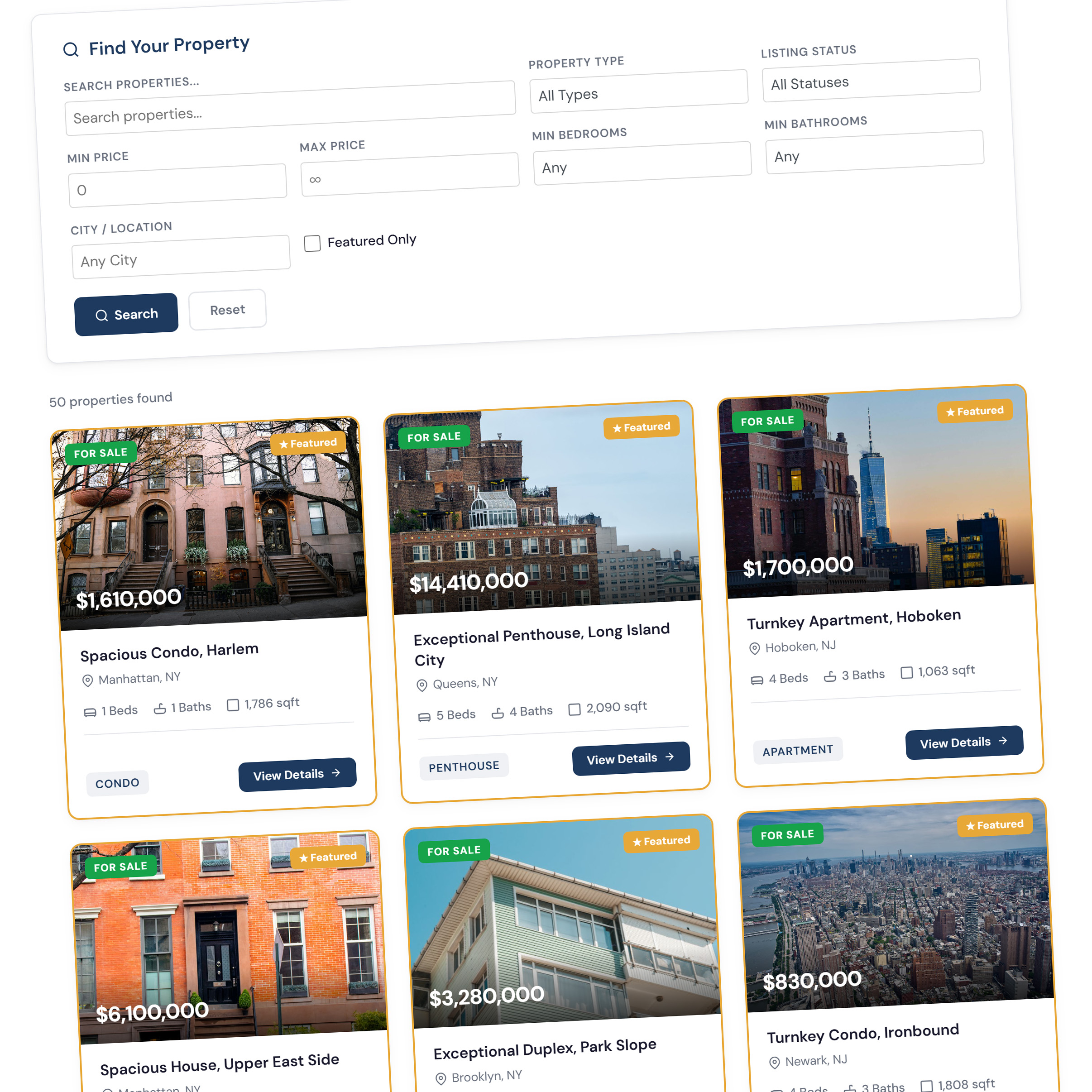
Properties List | Filterable grid/list of all published properties with search bar and map toggle. |
Property Detail | A single specific property (select the property in the menu item parameters). |
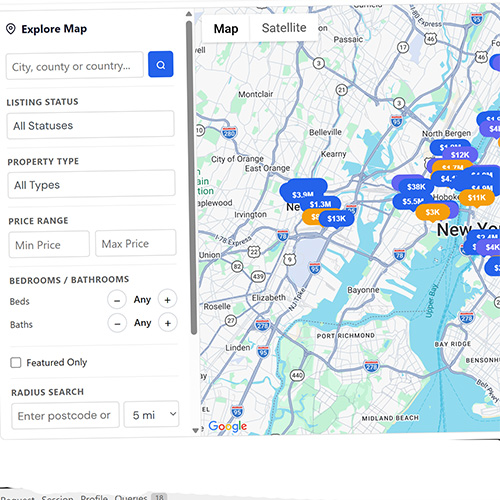
Map View | Full-page interactive map of all published properties. |
Saved Searches | The logged-in user's saved searches and alert management. |
For clean SEF URLs, ensure System → Global Configuration → SEO Settings → Search Engine Friendly URLs is set to Yes.
13. Permissions
SE Real Estate respects Joomla's standard ACL. Go to Configuration → Permissions tab to configure per-user-group access.
Action | Description |
|---|---|
Administer | Full access to configuration and all records. |
Access Options | Ability to change component configuration. |
Manage | Access to the component back end. |
Create | Ability to create new properties, agents, and amenities. |
Delete | Ability to delete records. |
Edit | Ability to edit existing records. |
Edit State | Ability to publish/unpublish records. |
14. Uninstalling
- Go to System → Manage → Extensions.
- Search for serealestate.
- Tick the checkbox next to SE Real Estate Package (pkg_serealestate).
- Click Uninstall.
Joomla will remove the component, the module, all language files, and all database tables created by SE Real Estate. This action is irreversible — back up your database first if you want to preserve your property data.
SE Real Estate v1.3.4 — © 2026 SE Real Estate — GNU General Public License v2 or later

