
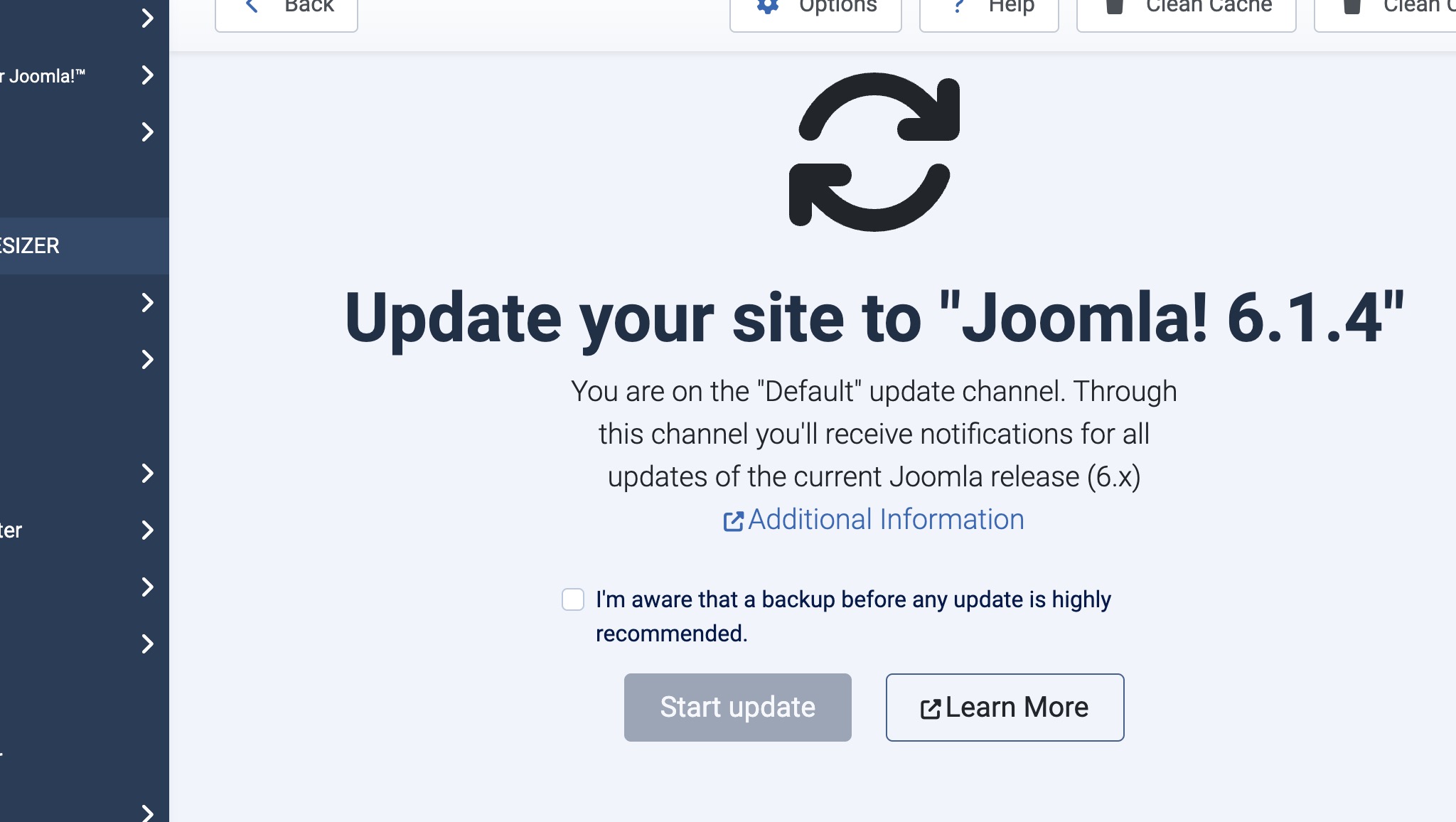
Joomla 5 stops receiving support on 12 October 2027, and Joomla 6 is already available. You have time, but Joomla itself is rarely what blocks an upgrade. The extensions and templates on your site are.
This guide walks you through a safe Joomla 5 to 6 upgrade. Its main aim is to help you find which extensions will cause problems before you touch your live site. It is written for site owners, and for developers who look after sites for clients.
Why upgrade, and when
Joomla 5 is supported until 12 October 2027 and Joomla 6 until October 2029 (endoflife.ai). After the Joomla 5 date you will get no security fixes for core, and any new vulnerability stays open on your site.
Leaving it to the last few months is the expensive option. Agencies get busy, extension vendors are slower to answer, and you have no time to replace anything that turns out to be abandoned. A sensible schedule looks like this:
- Now: audit your extensions and templates (this guide).
- Within three months: replace or remove anything that will not work on Joomla 6.
- Within six months: run the upgrade on a staging copy and fix what breaks.
- Well before October 2027: upgrade the live site.
Before you touch anything
Do these four things first. None of them take long, and they protect you if anything goes wrong.
- Take a full backup. Use Akeeba Backup or your host's snapshot tool, and download a copy off the server. Check that you can restore it.
- Create a staging copy. Never test the upgrade on the live site. Copy the files and database to a staging subdomain, and block it from search engines.
- Check your server. Joomla 6 has higher minimum PHP and database requirements than Joomla 5. Look up the current figures on joomla.org and confirm your host can meet them. Many hosts let you switch PHP versions in the control panel.
- Update everything on Joomla 5 first. Move to the latest Joomla 5 release and update every extension and template to its newest version. Many vendors only ship their Joomla 6 support in recent releases, so you will not see an accurate compatibility picture until you do this.
The extension audit
This is the step that decides how painful your upgrade will be. Work through it on the staging copy, using the list in System > Manage > Extensions.
1. Remove what you do not use
Old sites collect leftovers: trial extensions, unused plugins, modules nobody remembers. Each one is something you would otherwise have to check, so remove it before you audit. SE Extension Cleaner finds orphaned and unused extensions and shows what is left behind after an uninstall. Whatever you use, back up first. If you site is image heavy you can clear up orphaned and unused image by using SE Image Cleaner.
2. Check every remaining extension
For each third-party extension, find out whether the vendor supports Joomla 6:
- Look at the vendor's website and changelog for a stated Joomla 6 version.
- Check its entry in the Joomla Extensions Directory.
- If it is unclear, ask the vendor directly. A vendor who does not reply is itself useful information.
3. Give each one a status
Keep a simple table like this one, with one row per extension.
| Extension | Version installed | Joomla 6 support | Action |
|---|---|---|---|
| Example: contact form | 3.2 | Yes, in 3.4 | Update before upgrade |
| Example: image gallery | 2.1 | Unknown, vendor silent | Ask vendor, find a replacement |
| Example: old slider | 1.0 (last updated 2021) | No | Replace or remove |
Sort each extension into one of three groups:
- Compatible: works on Joomla 6 now, or has an update that does.
- Needs an update: a compatible version exists, so update it before you upgrade.
- At risk or abandoned: no Joomla 6 version and no sign of one coming.
4. Deal with the abandoned ones
For each extension in the last group you have four options: replace it with a maintained alternative, remove the feature, hire a developer to patch it, or accept that the site stays on Joomla 5 until you can. Patching is usually the worst long-term choice, because you then own the maintenance.
Pay particular attention to extensions that rely on the backward-compatibility layer in Joomla 5, which was designed to keep older Joomla 3 and 4 style code running. Joomla 6 is where that support is removed, so extensions that lean on it are the ones most likely to break.
Templates and overrides
Your template is the second most common reason an upgrade fails, and it is easy to miss because the admin side can look fine while the front end breaks.
- Check template compatibility in the same way as extensions. Commercial template frameworks usually publish a Joomla 6 release, and a template that has not been updated for more than a couple of years is a warning sign.
- List your template overrides. Open System > Site Templates > your template > Overrides, or look in the template's html folder. An override is a copy of a core or extension layout, so if the original changed, your copy may be out of date.
- Look for overrides flagged as changed. Joomla shows when the original file has been updated since you created the override. Review each one and merge in the changes.
- Check custom code in the template, such as custom PHP in index.php and helper files, for functions that Joomla 6 has removed.
Running the upgrade on staging
Once the audit is done and the problem extensions are sorted, run the upgrade on the staging copy.
- Turn on error reporting under System > Global Configuration > Server so problems show up instead of hiding behind a white page.
- Go to System > Update > Joomla and run the update to Joomla 6. If Joomla's pre-update check warns about extensions or requirements, read it carefully rather than clicking through.
- Clear the cache and check System > System Information for warnings.
- Test the front end and the admin side thoroughly.
Test the things your site actually depends on, not just the home page:
- Logging in and registering
- Contact and enquiry forms, and the emails they send
- Search
- Checkout, payments and subscriptions, if you take them
- Menus, language switching and any custom layouts
- Anything that uses scheduled tasks or cron
- The admin screens of your key extensions
Write down every problem you find and what fixed it. That list becomes your plan for the live upgrade.
Going live, and how to roll back
When staging is clean, repeat the process on the live site, ideally at a quiet time.
- Take a fresh full backup immediately before you start, and confirm it finished.
- Put the site offline in Global Configuration, so visitors do not see half-finished pages.
- Apply the same updates in the same order you used on staging, working from your list.
- Run through the same test list, then switch the site back online.
- Watch the site closely for the next few days: error logs, form submissions and orders.
Decide your rollback plan before you start. If something serious breaks and cannot be fixed quickly, restore the backup you took in step 1. Knowing in advance that you can do this, and how long it takes, is what makes the upgrade low-risk.
When to get help
Most small sites with a handful of mainstream extensions can be upgraded by a careful site owner. Get help if any of these apply:
- You rely on custom or abandoned extensions.
- The site takes payments or runs memberships.
- You have heavy template overrides or custom code.
- You cannot afford downtime or a failed upgrade.
SE24 Media is a London-based Joomla developer. If you would like a second pair of eyes, see our Joomla 5 site upgrade services and Joomla maintenance contracts.
Frequently asked questions
Do I have to upgrade to Joomla 6 now?
No. Joomla 5 is supported until 12 October 2027, but you should plan the work well before then.
Can I skip the staging site?
We advise against it. Staging is where you find out what breaks without anyone seeing it.
What if an extension is not compatible?
Ask the vendor, then replace it, remove it or patch it. If none of those is possible, stay on Joomla 5 until it is solved.
Will my SEO be affected?
Not if the upgrade goes cleanly and your URLs stay the same. Check your redirects and sitemap afterwards.
Sources: Joomla 5 lifecycle, endoflife.ai